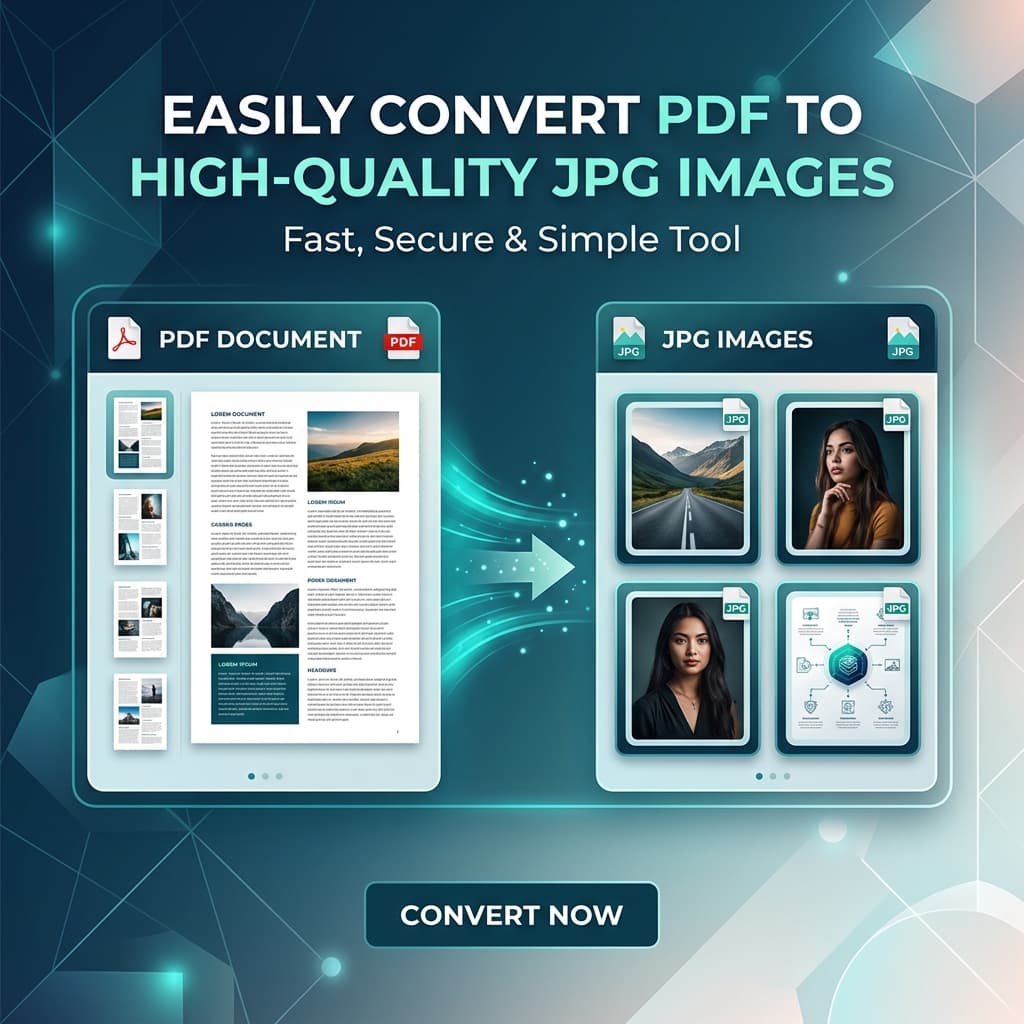
Need to extract high-resolution images from a PDF or convert entire document pages into crisp JPG/PNG files for web publishing, slide presentations, or social media? This guide explains how PDF rasterization works, how to maintain 300 DPI sharpness, and the best free methods to convert PDF to JPG securely in your browser.
JPG vs. PNG for PDF Extraction: Which Should You Choose?
JPG (JPEG) — Best for Photos & General Documents
JPG uses lossy compression algorithms designed for photographic imagery and continuous color tones. It provides significantly smaller file sizes, making it perfect for email attachments, websites, and mobile viewing.
PNG — Best for Diagrams, Text & Transparent Backgrounds
PNG uses lossless compression. It keeps fine vector text, blueprints, architectural schematics, and sharp line art crisp without compression artifacts around text edges.
Method 1: Free PDF Combine (High-Resolution Browser Rasterization)
Using our Free PDF to Image Tool, your PDF pages are rendered directly into HTML5 canvas elements at high pixel density:
- Visit the PDF to Image Converter.
- Upload your PDF file by dragging it into the dropzone.
- Select your preferred output format (JPG for smaller size or PNG for maximum crispness).
- Select quality rendering preset (Standard 150 DPI or Ultra HD 300 DPI).
- Click Convert All Pages → download individual page images or a consolidated ZIP archive.
Method 2: macOS Preview Built-in Export
- Open the PDF in Apple Preview.
- Select the specific page thumbnail in the left sidebar.
- Click File → Export... from the top menu.
- In the Format dropdown, choose JPEG or PNG.
- Adjust the Resolution slider to 300 pixels/inch for crystal-clear print quality → click Save.
Frequently Asked Questions
Why do some online converters produce blurry text in JPGs?
Many basic converters render PDF pages at 72 DPI (standard legacy screen resolution). For crisp typography, pages must be rasterized at 200–300 DPI scale.
Are my PDF files safe during conversion?
Yes. With Free PDF Combine, PDF pages are decoded locally in your browser RAM using WebAssembly and PDF.js. Your document data is never sent to external servers.