
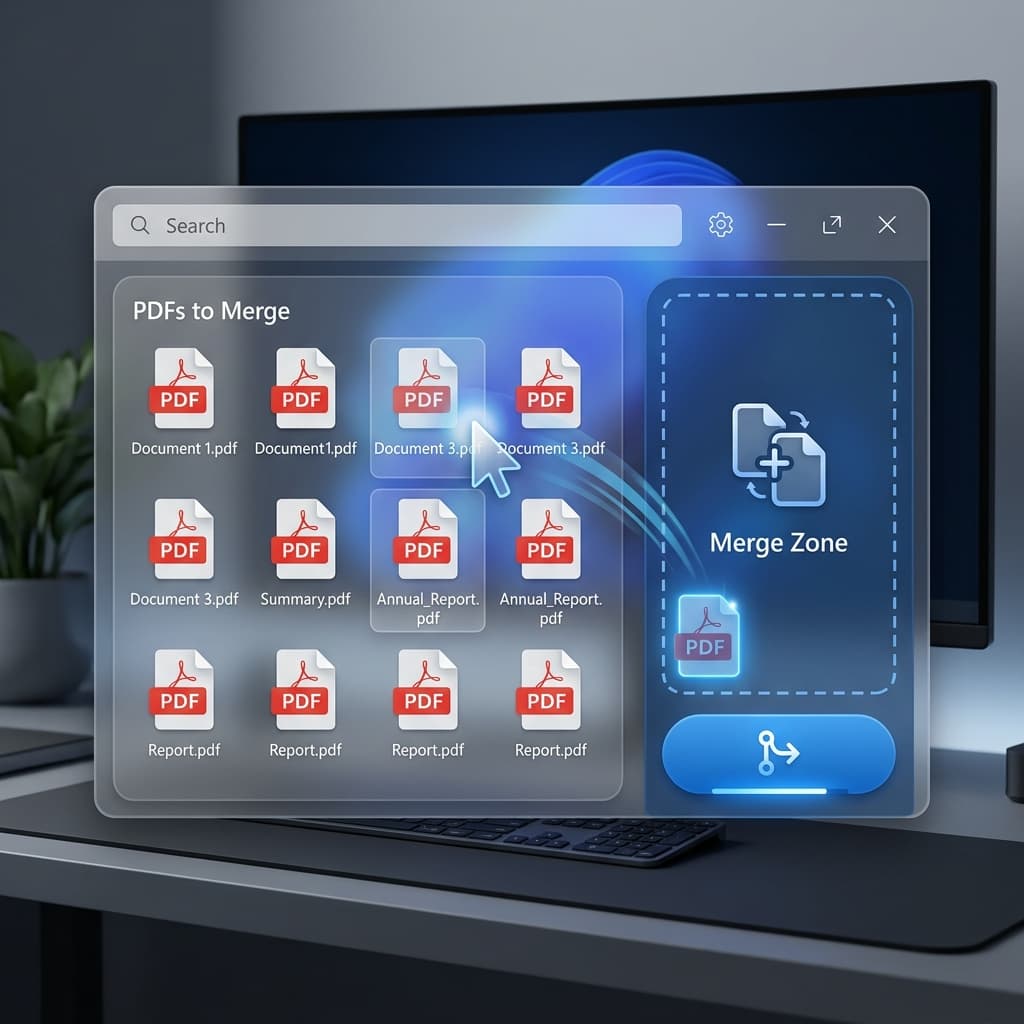
Windows 10 and Windows 11 make it easy to view PDFs, but they do not include a simple built-in merge button. These are the practical ways to combine PDFs without buying Adobe Acrobat.
Method 1: Use a private browser-based PDF merger
The fastest option is to use Free PDF Combine. It works in Chrome, Edge, Firefox, and other modern Windows browsers. Select your PDFs, arrange them in order, and download the merged file. Because processing happens locally, your documents are not uploaded.
Method 2: Use Microsoft Print to PDF for simple files
Windows includes Microsoft Print to PDF, which can save printable content as a PDF. It is useful for creating a single PDF from one document, but it is not ideal for merging multiple existing PDFs because ordering and page handling can become awkward.
Method 3: Install a desktop PDF utility
Desktop tools such as PDF24 Creator can combine files offline. This is a good option if you frequently process large batches, but it requires installation and is more than most users need for a quick merge.
Which option should Windows users choose?
For most one-off tasks, a browser-based merger is the simplest choice. It avoids Adobe subscriptions, works on locked-down school or office computers, and keeps the workflow focused on selecting, ordering, and downloading the final PDF.
Tips before merging PDFs on Windows
- Rename files with numbers like 01, 02, and 03 if you want an obvious order.
- Open the final PDF after download to confirm page sequence.
- Use a local-processing tool for tax, medical, legal, or client documents.
- Compress the final file if it is too large for email upload limits.